

Managing group memberships in Microsoft Entra ID is critical for maintaining security and compliance. By default, both users and groups can be added to security groups, which may introduce complexity and risks. Using Microsoft Graph API, administrators can enforce rules to restrict nested group membership. This approach ensures cleaner structures, reduces privilege escalation, and strengthens identity governance.
Microsoft recently introduced a new capability through Microsoft Graph that allows organizations to restrict groups from being added as members of a security group. This enhancement provides better control over group membership and helps organizations reduce complexity and security risks.
Key takeaways
A quick bulleted summary so readers get value up front.
- By default, Microsoft Entra ID allows both users and groups to be added as members of security groups.
- Microsoft Graph is an API that provides a single endpoint for accessing data, intelligence, and insights from Microsoft 365
- Microsoft Graph provides granular control over Microsoft Entra ID group membership operations.
- For predictable deployment, create a new assigned-membership security group and include isAssignableToRole=false and disableNesting=true in the same POST request.
- The capability is documented on the Microsoft Graph beta surface, so preview limitations apply.
Why restrict nested groups?
Nested groups have traditionally been used in Microsoft Entra ID to simplify administration by allowing one security group to become a member of another. While this approach can reduce the effort required to manage permissions, it often introduces unnecessary complexity. As group hierarchies grow, it becomes increasingly difficult for administrators to determine who actually has access to a resource, making permission reviews and troubleshooting far more challenging.
From a security perspective, nested groups can create hidden paths to sensitive resources. A user may gain access through multiple layers of group membership without administrators realizing it, increasing the risk of unintended privilege assignments. For organizations adopting Zero Trust and least-privilege principles, maintaining direct and transparent memberships is critical.
Security groups in Microsoft Entra ID can support various member types, including users, devices, service principals, contacts, and even other security groups, which is why controlling nested membership becomes an important governance requirement
The new Microsoft Graph capability
In September 2026, a new preview enhancement introduced a group setting that allows administrators to define whether a security group can accept another group as a member, configurable through Microsoft Graph. By configuring the appropriate setting through Microsoft Graph, administrators can. This provides a more predictable and manageable security model.
- Allow only direct user membership
- Prevent nested group structures
- Improve access governance
- Simplify permission reviews and audits
- Understand the group properties
When automating Microsoft Entra group creation, certain properties play a crucial role in ensuring consistency, scalability, and security. In September 2026, Microsoft introduced a new preview enhancement to the group resource by adding the disableNesting property.
This simplifies governance, reduces risks of privilege escalation, and supports automation by enforcing clean, user-only group structures—making group management in Entra ID more streamlined and controlled.
| Property | Purpose | Important behavior |
|---|---|---|
| disableNesting | Prevents other groups from being added as members of the security group. | Set to true in the group creation payload used in this article. |
| isAssignableToRole | Indicates whether the group can be assigned to a Microsoft Entra role. | Creation-time only and immutable after the group is created. |
| securityEnabled | Identifies the object as security-enabled. | Set to true for the security group created in this article. |
| groupTypes | Identifies unified or dynamic membership behavior. | Use an empty array for a standard assigned-membership security group. |
| mailEnabled | Controls whether the group is mail-enabled. | Set to false for this cloud security group scenario. |
Why Existing Groups can be problematic
When isAssignableToRole is not explicitly set during creation, some existing groups can return null for this property. Microsoft documents isAssignableToRole as immutable, which means an existing group cannot be converted by changing the value from null to false or from false to true. Sending isAssignableToRole in a PATCH request against an existing group can therefore fail with a bad-request response.
You may also notice that disableNesting is absent from a normal GET response. Microsoft Graph returns only a subset of group properties by default, so non-default properties must be requested with $select. Even after explicitly selecting it, the behavior of an existing group can depend on whether that group is eligible for the setting and whether the preview capability is available for the request context.
For that reason, this article does not present PATCH as the primary deployment method. The clean approach is to create a new security group and explicitly define isAssignableToRole=false and disableNesting=true together. This removes the ambiguity between null and false and avoids attempting to modify an immutable property later.
Prerequisites and permissions
- Install the Microsoft Graph PowerShell authentication module that provides Connect-MgGraph and Invoke-MgGraphRequest.
- Use a work or school account that can consent to, or has already been granted, the required delegated permissions.
- Use Group.ReadWrite.All to create the security group.
- Include Group-NestingSupport.ReadWrite.All so the signed-in context can read and write the disableNesting property.
- Because the endpoint and property are in beta, do not treat the preview API as a production-stable contract without your own validation.
Create the group using PowerShell and REST API
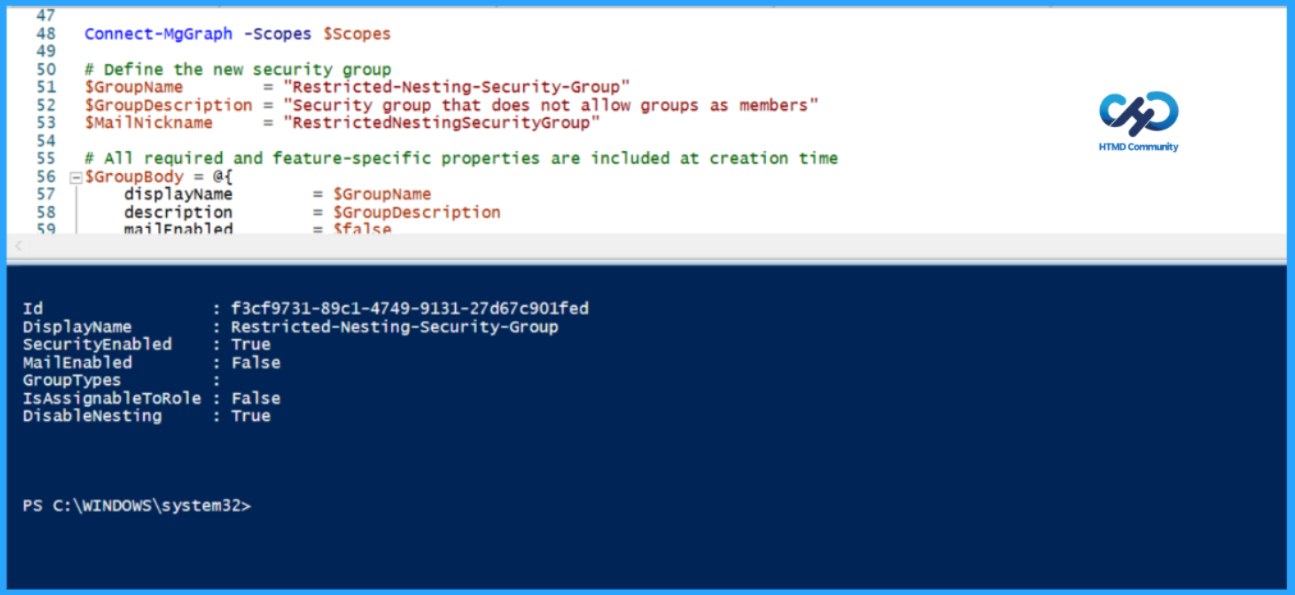
The following script authenticates interactively with Connect-MgGraph, builds one JSON payload containing all group properties, and submits it directly to the Microsoft Graph beta REST endpoint. New-MgGroup is intentionally not used.
###############################################################################
# DESCRIPTION
# Creates a Microsoft Entra Security Group using Microsoft Graph REST API
# with nested group membership restrictions enabled using the disableNesting
# property.
#
# AUTHOR
# Sujin Nelladath
#
# LINKEDIN
# https://www.linkedin.com/in/sujin-nelladath-8911968a/
#
# BLOG
# Restrict groups from being added as members of a security group using
# Microsoft Graph API
#
# VERSION
# 1.0
#
# REQUIREMENTS
# - Microsoft Graph PowerShell Authentication Module
# - Group.ReadWrite.All
# - Group-NestingSupport.ReadWrite.All
#
# AUTHENTICATION
# Delegated Authentication using Connect-MgGraph
#
# API ENDPOINT
# POST https://graph.microsoft.com/beta/groups
#
# NOTES
# - Uses REST APIs through Invoke-MgGraphRequest.
# - Does not use New-MgGroup.
# - Creates the group with disableNesting enabled during creation.
# - Intended for Microsoft Graph Beta.
#
###############################################################################

# Install the authentication module if it is not already available
# Install-Module Microsoft.Graph.Authentication -Scope CurrentUser

$Scopes = @(
    "Group.ReadWrite.All"
    "Group-NestingSupport.ReadWrite.All"
)

Connect-MgGraph -Scopes $Scopes

# Define the new security group
$GroupName        = "Restricted-Nesting-Security-Group"
$GroupDescription = "Security group that does not allow groups as members"
$MailNickname     = "RestrictedNestingSecurityGroup"

# All required and feature-specific properties are included at creation time
$GroupBody = @{
    displayName        = $GroupName
    description        = $GroupDescription
    mailEnabled        = $false
    mailNickname       = $MailNickname
    securityEnabled    = $true
    groupTypes         = @()
    isAssignableToRole = $false
    disableNesting     = $true
} | ConvertTo-Json -Depth 5

try {
    $NewGroup = Invoke-MgGraphRequest `
        -Method POST `
        -Uri "https://graph.microsoft.com/beta/groups" `
        -ContentType "application/json" `
        -Body $GroupBody

    Write-Host "Security group created successfully." -ForegroundColor Green
    Write-Host "Display name : $($NewGroup.displayName)"
    Write-Host "Group ID     : $($NewGroup.id)"

    # Request non-default properties explicitly for verification
    $Select = 'id,displayName,securityEnabled,mailEnabled,groupTypes,isAssignableToRole,disableNesting'
    $VerifyUri = "https://graph.microsoft.com/beta/groups/$($NewGroup.id)?`$select=$Select"
    $VerifiedGroup = Invoke-MgGraphRequest -Method GET -Uri $VerifyUri

    $GroupDetails = [PSCustomObject]@{
        Id                 = $VerifiedGroup.id
        DisplayName        = $VerifiedGroup.displayName
        SecurityEnabled    = $VerifiedGroup.securityEnabled
        MailEnabled        = $VerifiedGroup.mailEnabled
        GroupTypes         = ($VerifiedGroup.groupTypes -join ', ')
        IsAssignableToRole = $VerifiedGroup.isAssignableToRole
        DisableNesting     = $VerifiedGroup.disableNesting
    }

    $GroupDetails | Format-List
}
catch {
    Write-Error "Group creation failed: $($_.Exception.Message)"
    if ($_.ErrorDetails.Message) {
        Write-Error $_.ErrorDetails.Message
    }
}
finally {
    Disconnect-MgGraph | Out-Null
}
Verify the created group
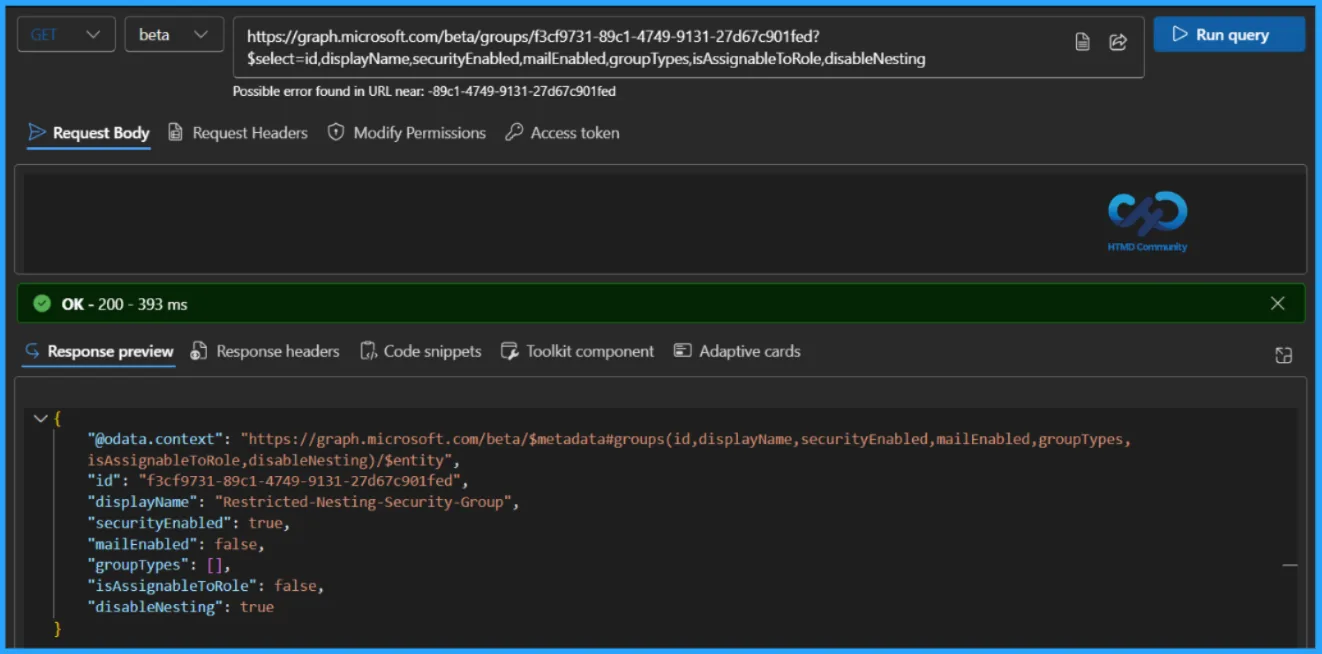
The script performs the verification automatically. If you want to run the request independently, use the group ID returned by the creation operation and explicitly select both properties:
The intended result is a security-enabled group where isAssignableToRole is false and disableNesting is true. Requesting the properties through $select is important because Microsoft Graph group operations return only a subset of properties by default.
Test the nesting security group restriction
After creating the group, I attempted to add another security group as a member of the Restricted-Nesting-Security-Group. The operation failed with the error “Unable to complete due to service connection error. Please try again later.” While this may indicate that the nesting restriction is being enforced, the error message itself doesn’t explicitly confirm that disableNesting caused the failure. Additional validation and testing are recommended before concluding that the restriction is active.
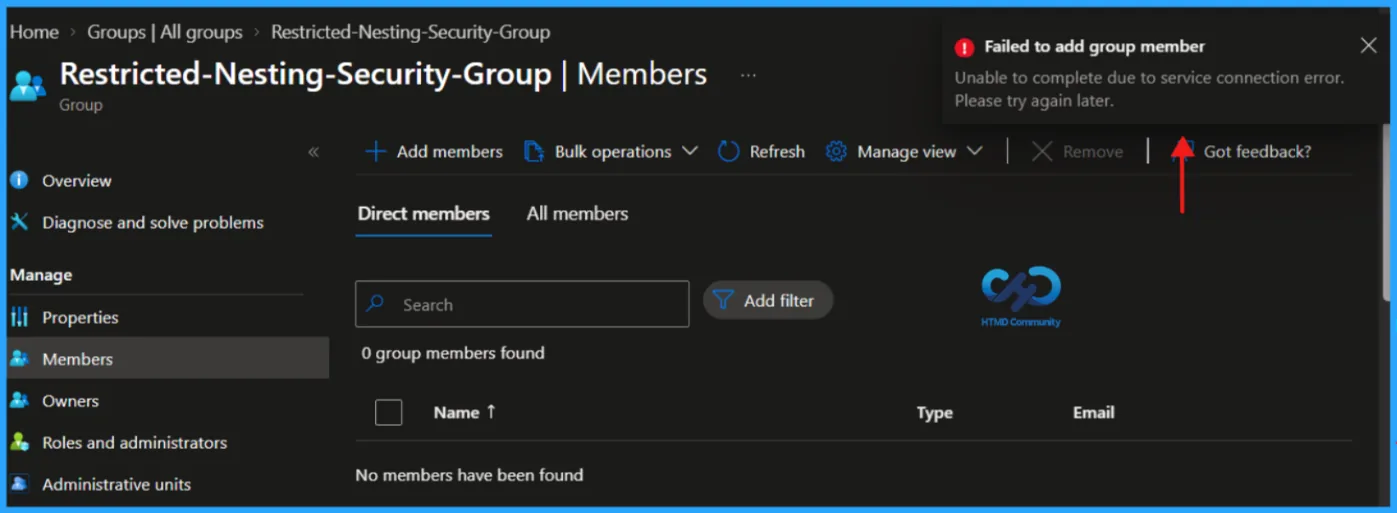
Capture the actual error returned by your tenant as part of your validation. Because this feature is exposed through the beta API, response text and behavior can change while the capability remains in preview.
Microsoft documentation references
- Microsoft Graph What’s New
- Microsoft Graph beta group resource
- Create group - Microsoft Graph beta
- Microsoft Graph permissions reference
- Use Microsoft Entra groups to manage role assignments
Conclusion
The safest and clearest way to deploy this preview capability is to create a new assigned-membership security group and define isAssignableToRole=false and disableNesting=true in the same request.
This avoids trying to modify an immutable role-assignment property on an existing group and removes the ambiguity created when older groups return null. Validate the result with an explicit $select request and test the membership restriction in a non-production environment before wider adoption.
HTMD Consultancy
Get in touch with us to streamline your IT and security solutions. Let us help you fix complex issues and provide streamlined solutions for complex migration projects. Follow us on LinkedIn.