
Key Takeaways
- Developer-Optimized Environment - Preconfigured for common development workloads and use cases.
- This image is available for Windows 365 Enterprise and Windows 365 Flex Dedicated mode.
- Faster Onboarding - Accelerates the setup process for new developer workstations.
- Consistent Cloud PC Experience - Delivers standardized configurations across development teams.
- Reduced Administrative Overhead - Simplifies provisioning, configuration, and ongoing management.
- Generally available - Available in preview within Windows 365 for organizations seeking to enhance developer productivity.
In this article, I will discuss how to create Windows 365 Developer Cloud PC with Microsoft 365 Apps using Microsoft Intune. The Windows 11 Developer-Optimized Image is now generally available and comes preconfigured with development tools and settings to support common developer workloads.
This ready-to-use image enables organizations to quickly provision development-ready Cloud PCs, reducing onboarding time, simplifying environment setup, and delivering a consistent experience across development teams. By leveraging this image, IT administrators can accelerate developer productivity while minimizing the effort required to deploy and manage development environments.
What’s Included in Windows 11 Developer Configuration Image
The new Windows 11 Developer Configuration Image eliminates most of the manual setup traditionally required for development workstations by delivering a fully configured Windows + WSL Ubuntu environment with essential developer tools already installed and ready to use. The versions of each tool available in the image is below.
| Tool Name | Version |
|---|---|
| PowerShell7 | 7.6.5 |
| Visual Studio Code | 1.134.0 |
| Visual Studio Code Extensions for All Users | ms-vscode.powershell (2025.4.0), ms-python.python (2026.4.0), ms-vscode-remote.remote-wsl (0.104.3), github.vscode-pill-request-github (0.162.0), ms-edgedevtools.vscode-edge-devtools (2.1.10), mspythondeprem.python-dependency-remediation (1.2.3) |
| PowerToys | 0.101.2362.0 |
| Python | 3.14.7150.0 |
| Node.js | 24.19.0 |
| npm | 11.17.0 |
| nvm | 1.2.2 |
| git | 2.55.0.windows.3 |
| GitHub (gh) | 2.98.0 |
| GitHub Copilot CLI | 2.98.0 |
| Work IQ (GitHub Copilot CLI Plugin) | V2.0.2 |
| Oh my posh | 30.7.0 |
| UV tools | 0.12.5 (210d1f678 2026-08-14 x86_64-pc-windows-msvc) |
| Azure CLI | 2.89.1 |
| .NET Runtime | Microsoft.AspNetCore.App 10.0.11 |
| .NET SDK | 10.0.400 |
| Unix Core Utils | 0.8.0 |
| WinAppCLI | 0.6.1 |
| Windows Dev Skill (GitHub Copilot CLI Plugin | v0.5.0 |
| Intelligent Terminal | 0.2.2192.0 |
Create Windows 365 Developer Cloud PC with Microsoft 365 Apps. Table. 1 (Credit: Microsoft)
Create a Provisioning Policy for Windows 11 Developer Cloud PC with Microsoft 365 Apps
To create Windows 365 Developer Cloud PC with Microsoft 365 Apps, login to the Microsoft Intune Admin Center using your administrator credentials.
- Navigate to > Devices > Manage Windows 365 Cloud PCs > Provision Cloud PCs
- Click on Provisioning policies > +Create policy
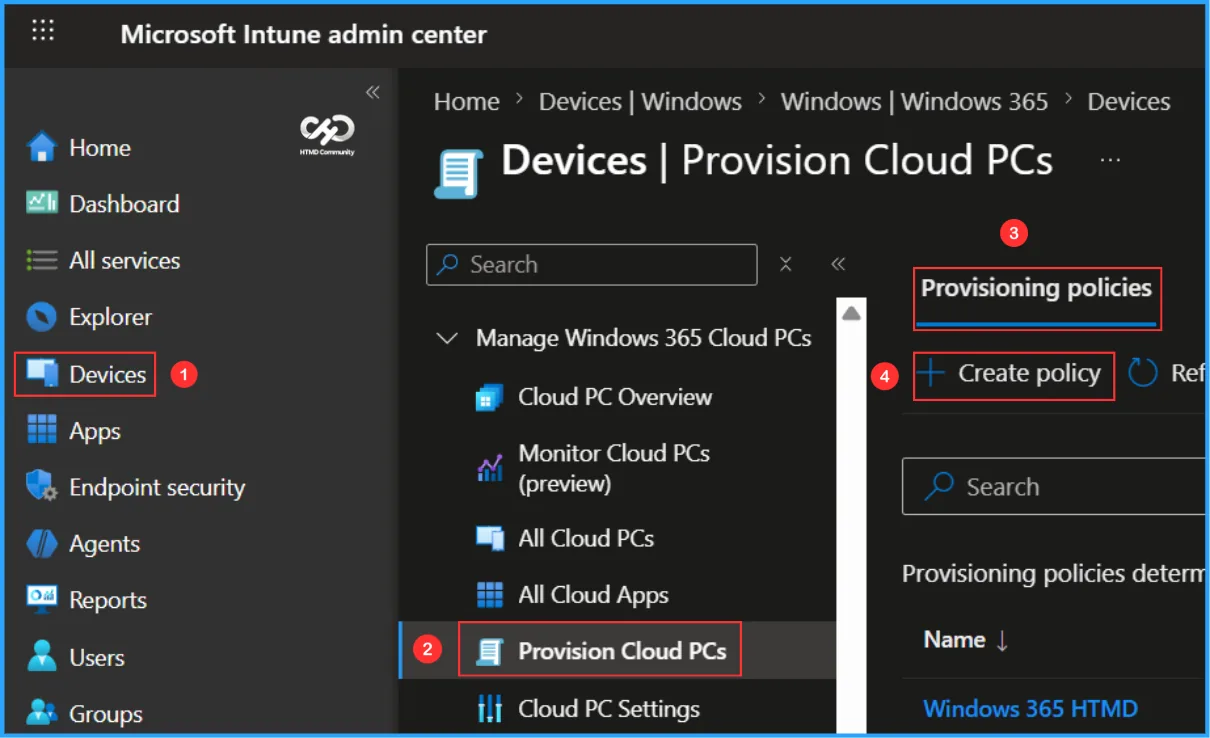
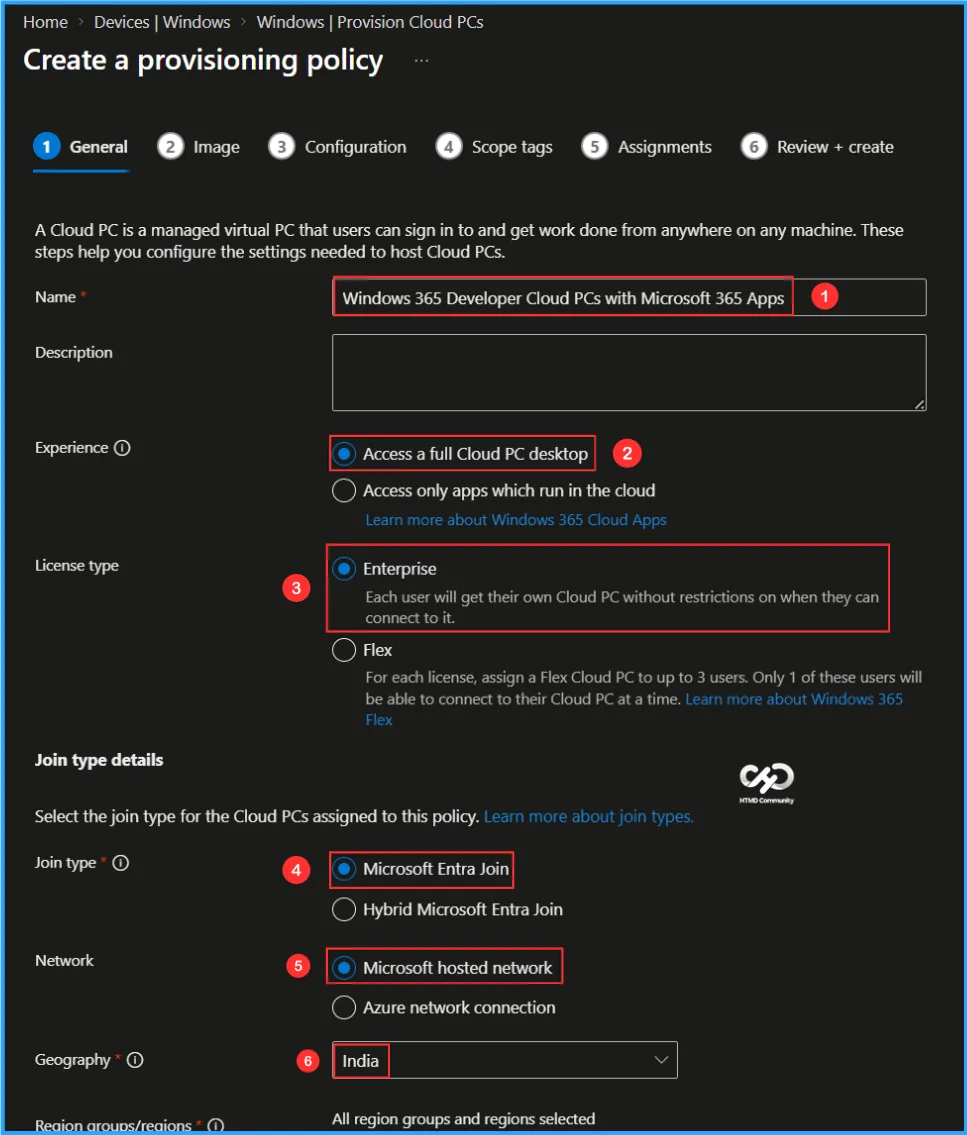
In the General tab, configure the required settings for your Windows 365 Cloud PCs. A Cloud PC is a managed virtual PC that enables users to securely access their work environment from anywhere and on any device. These settings define the configuration and deployment requirements needed to provision and host Cloud PCs successfully.
- Name: Windows 11 Enterprise Developer Cloud PCs with Microsoft 365 Apps
- Description: Optional
- Experience: Access a full Cloud PC desktop
- License type: Enterprise
- Join type: Microsoft Entra Join
- Network: Microsoft hosted network
- Geography: India
- Region groups/regions: India/Central India (Select all)
- Use Microsoft Entra single sign-on: Yes (Check the box)
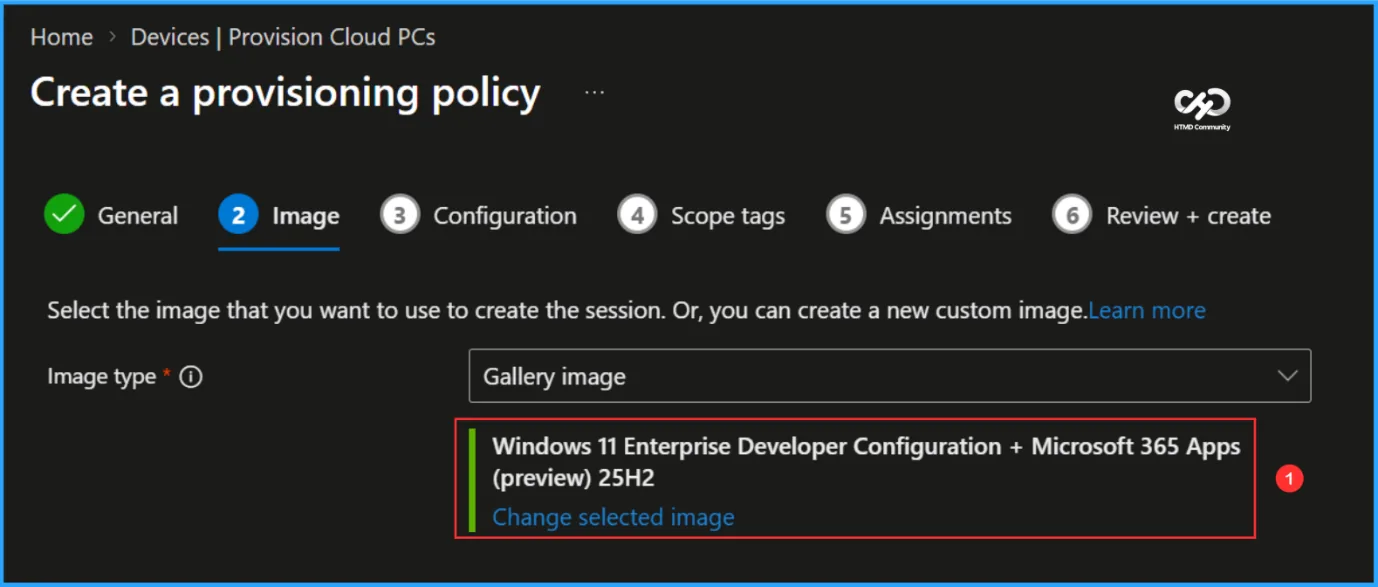
In the Image tab, keep the Image type set to Gallery image. Then, click Change selected image and choose Windows 11 Enterprise Developer Configuration + Microsoft 365 Apps, a developer-optimized image based on Windows 11 version 25H2.
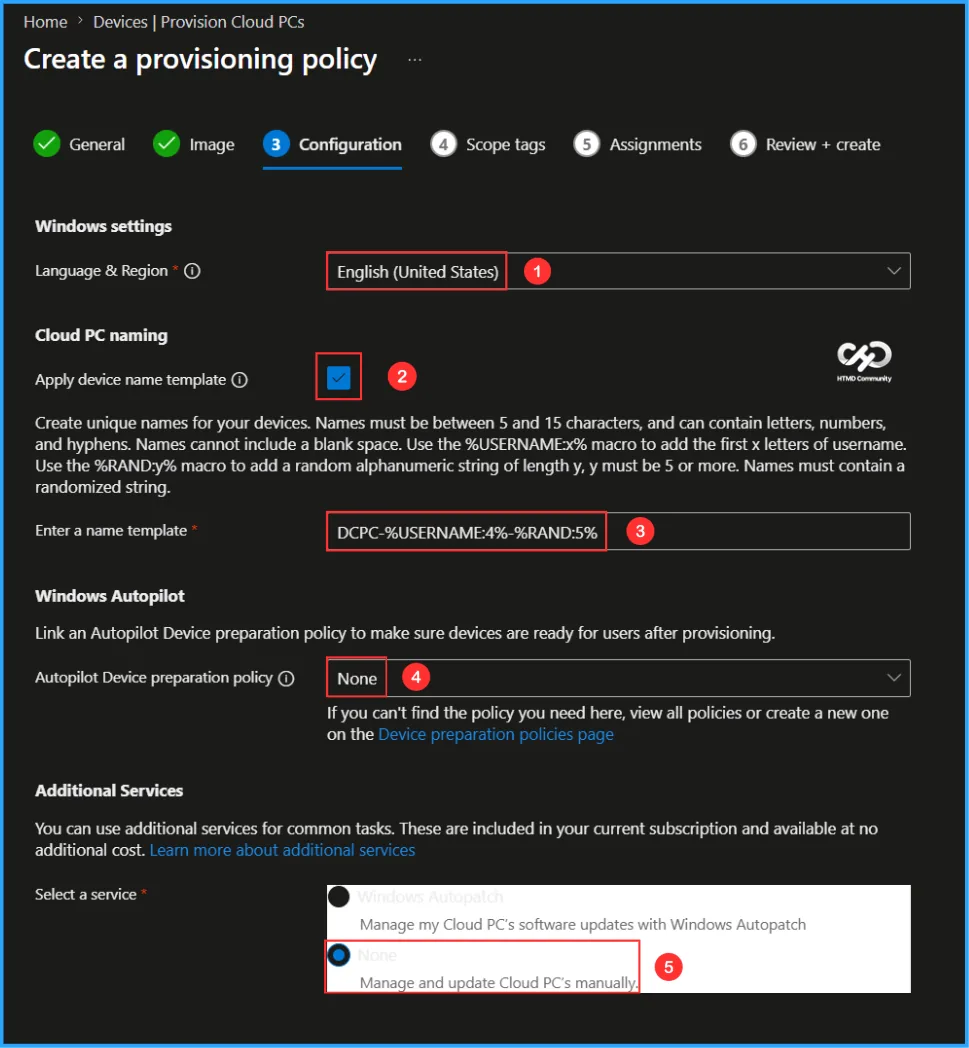
The next tab focuses on configuring Windows settings, Cloud PC naming, Windows Autopilot, and Additional Services. Review and select the appropriate options based on your organization’s requirements before proceeding with the provisioning process.
- Language & Region: English (United States)
- Apply device name template: Yes (Check the box)
- Enter a name template: DCPC-%USERNAME:4%-%RAND:5%
- Autopilot Device preparation policy: None
- Select a service: None (Manage and update Cloud PC’s manually)
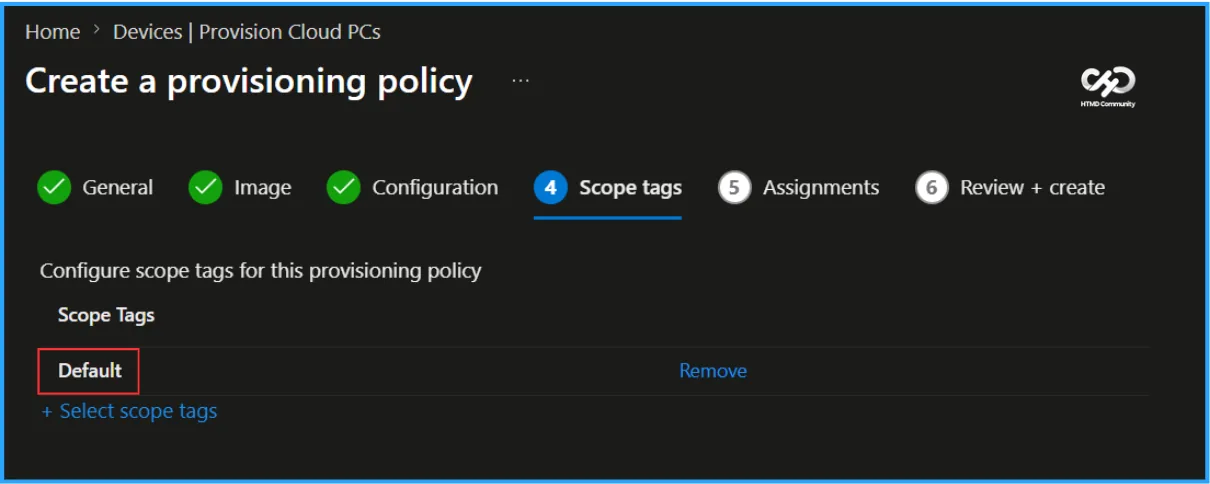
On the Scope tags page, leave the Scope tags setting as Default. If your organization uses custom scope tags for role-based access and administration, select the appropriate tags according to your requirements. Once configured, click Next to continue.
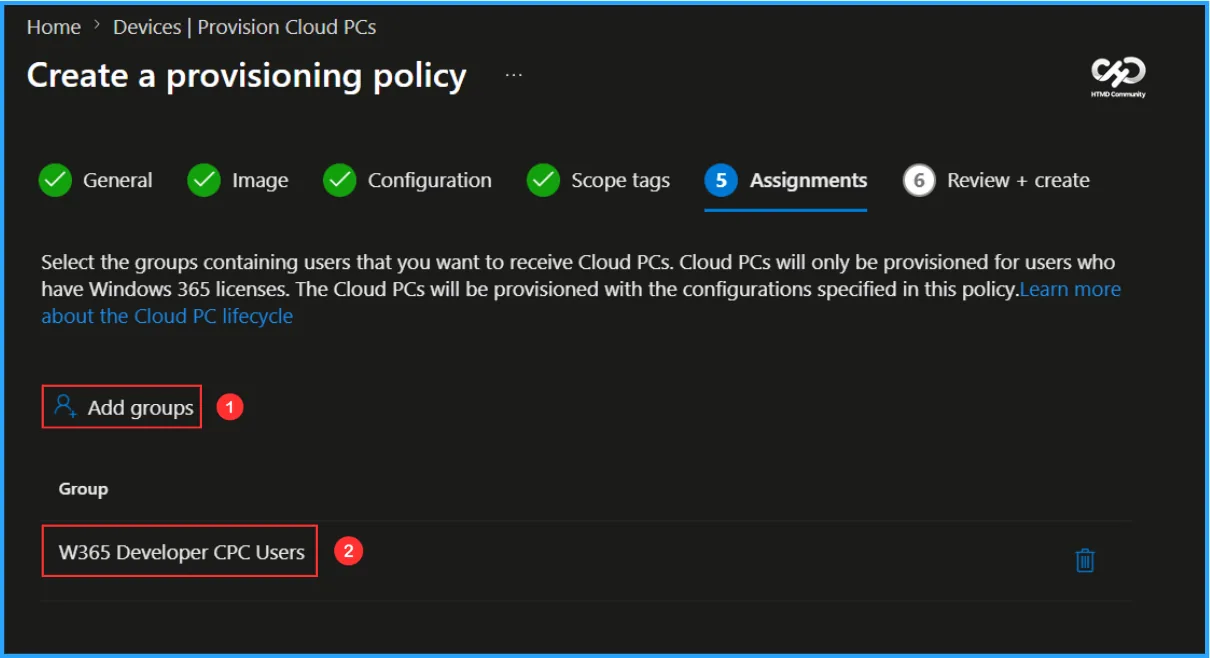
In this section, select the user group that will be assigned the Developer Cloud PCs. For this example, the provisioning policy is assigned to the W365 Developer CPC Users group. Before assigning the policy, ensure that the users in the selected group have been assigned a Windows 365 Enterprise Cloud PC license through the Microsoft 365 Admin Center. To assign the provisioning policy, click Add groups, select the appropriate user group, and then proceed to the next step.
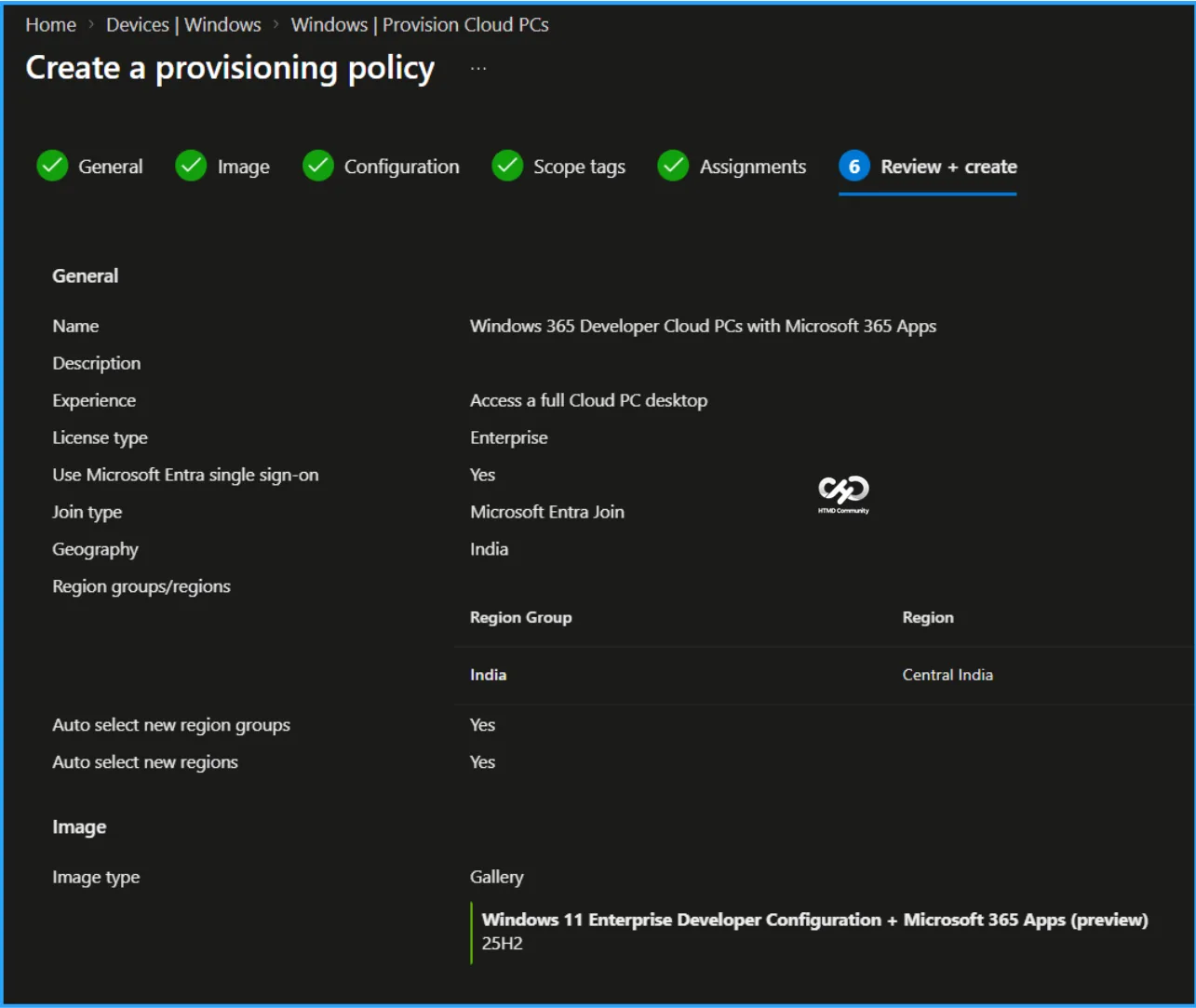
On the Review + create page, carefully review all the settings configured for the Windows 11 Enterprise Developer Cloud PCs with Microsoft 365 Apps provisioning policy. Once you have verified the configuration, click Create to deploy the policy and begin provisioning Developer Cloud PCs for the assigned users.
Monitor the Windows 365 Developer Cloud PC with Microsoft 365 Apps Deployment
The newly created Windows 11 Enterprise Developer Cloud PC with Microsoft 365 Apps provisioning policy has been assigned to the W365 Developer CPC Users group. After the policy is deployed, allow some time for the Cloud PC provisioning process to complete. A new Cloud PC will be created and configured with the preinstalled developer tools, Microsoft 365 Apps, and developer-optimized settings included in the selected image.
To track the provisioning progress and verify the deployment status, navigate to the provisioning policy in the Microsoft Intune admin center and review the status details for the assigned users and Cloud PCs.
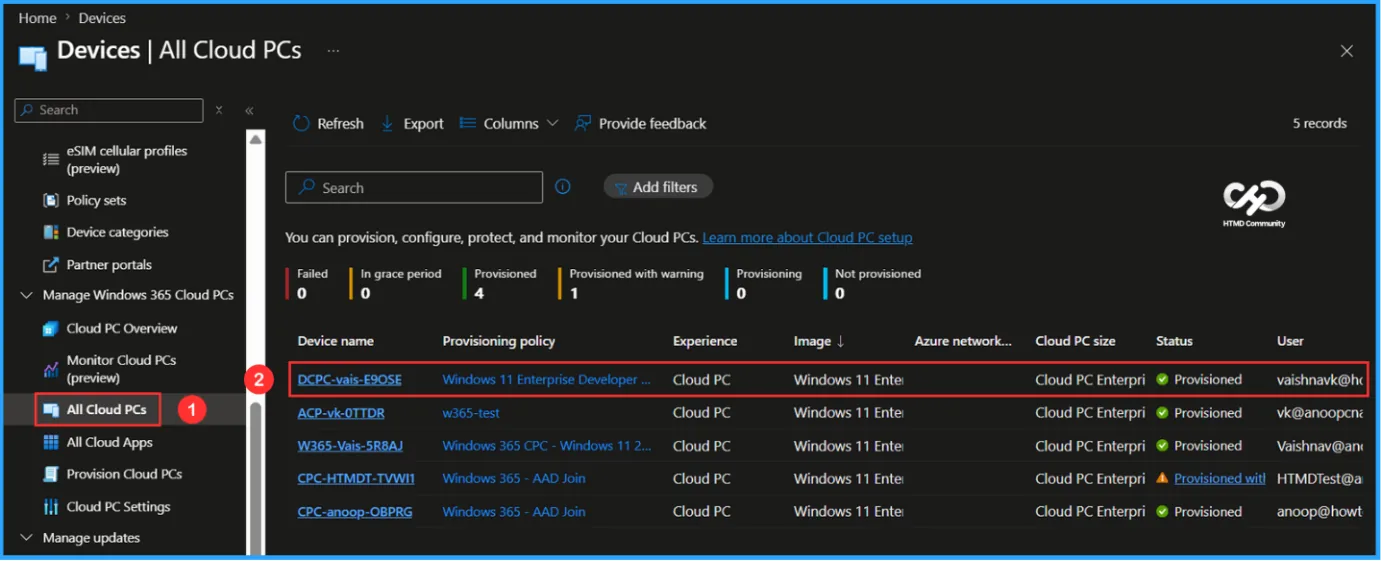
- Navigate to Devices > Manage Windows 365 Cloud PCs > All Cloud PCs > Find the “Windows 11 Enterprise Developer Cloud PCs with Microsoft 365 Apps”.
According to our configuration, Developer Windows 11 25H2 Enterprise Cloud PC with the device name “DCPC-vais-E9OSE” has been successfully provisioned and assigned to the users in the targeted group.
End User Experience of Developer Cloud PC with Windows App
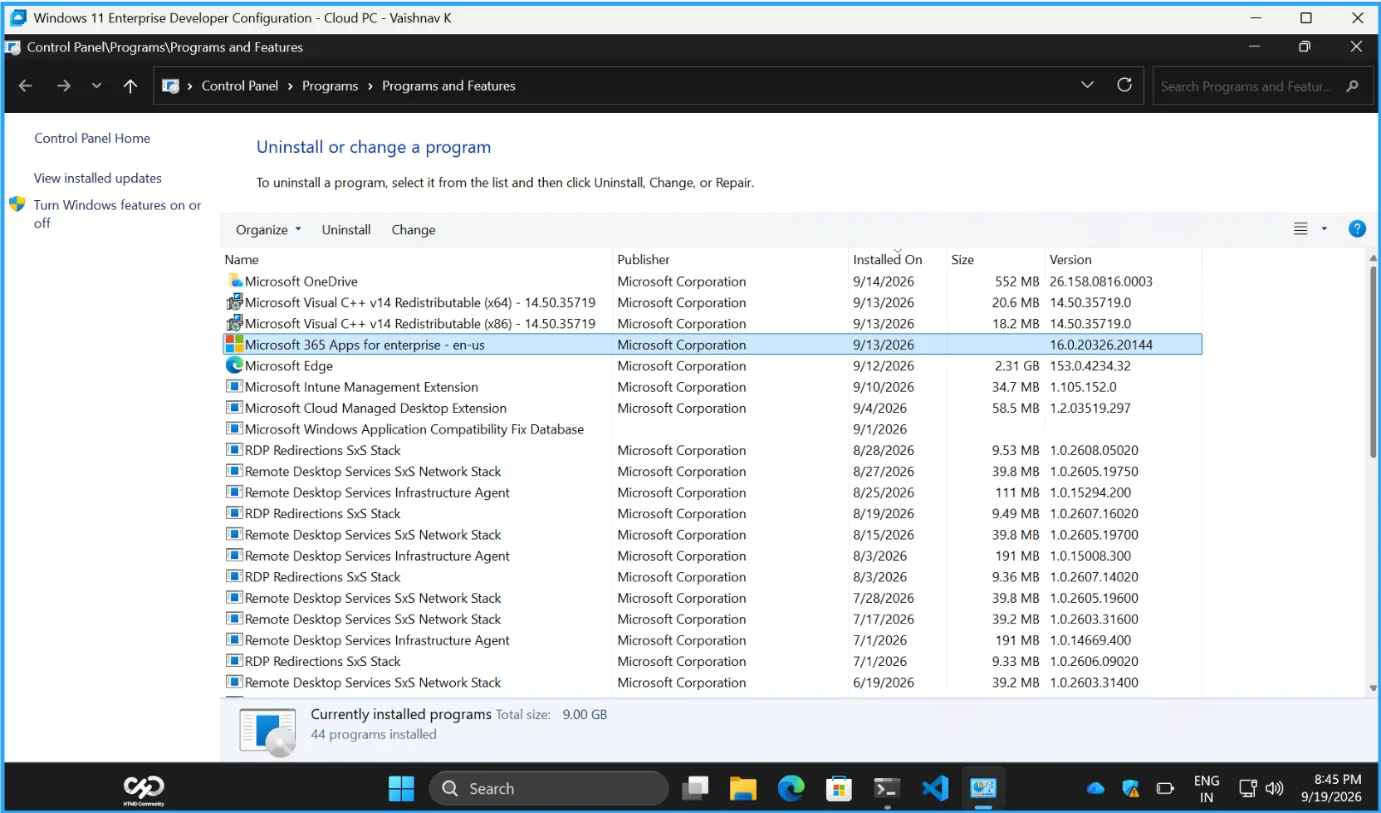
It’s now time to evaluate the end-user experience of the newly provisioned Windows 11 Enterprise Developer Cloud PCs with Microsoft 365 Apps. Launch the Windows App and sign in using the credentials assigned to the Cloud PC user. From the left navigation pane, select Devices, where the assigned Cloud PC should be listed. Double-click the Cloud PC to connect and launch the desktop session.
Once connected, users will have access to a fully configured developer environment that includes the preinstalled development tools, Microsoft 365 Apps, and developer-optimized settings. The Cloud PC is now ready for developers to start working.
Reference Links
HTMD Consultancy
Get in touch with us to streamline your IT and security solutions. Let us help you fix complex issues and provide streamlined solutions for complex migration projects. Follow us on LinkedIn.