

A remote wipe is one of the most consequential actions available to an Intune administrator. The refreshed Windows confirmation experience makes the intended result easier to understand by presenting three direct choices: remove everything, preserve the user experience while resetting management, or perform a security-focused erase. This article explains the behavior behind each choice and provides a practical workflow for selecting and validating the correct action.
Key Takeaways
- The wipe dialog now describes the expected outcome instead of relying only on technical checkbox combinations.
- The standard reset removes personal and organizational data and returns Windows to its default state.
- The keep-user-data choice preserves user files and accounts and keeps the device enrolled, while removing MDM policies and settings.
- The high-security choice uses a protected wipe that continues through a power interruption and overwrites free space, but it carries a serious risk of leaving some hardware unable to start.
- Wipe is irreversible. Confirm ownership, business purpose, recovery readiness, and the selected device before sending the command.
What Changed in the Windows Wipe Experience?
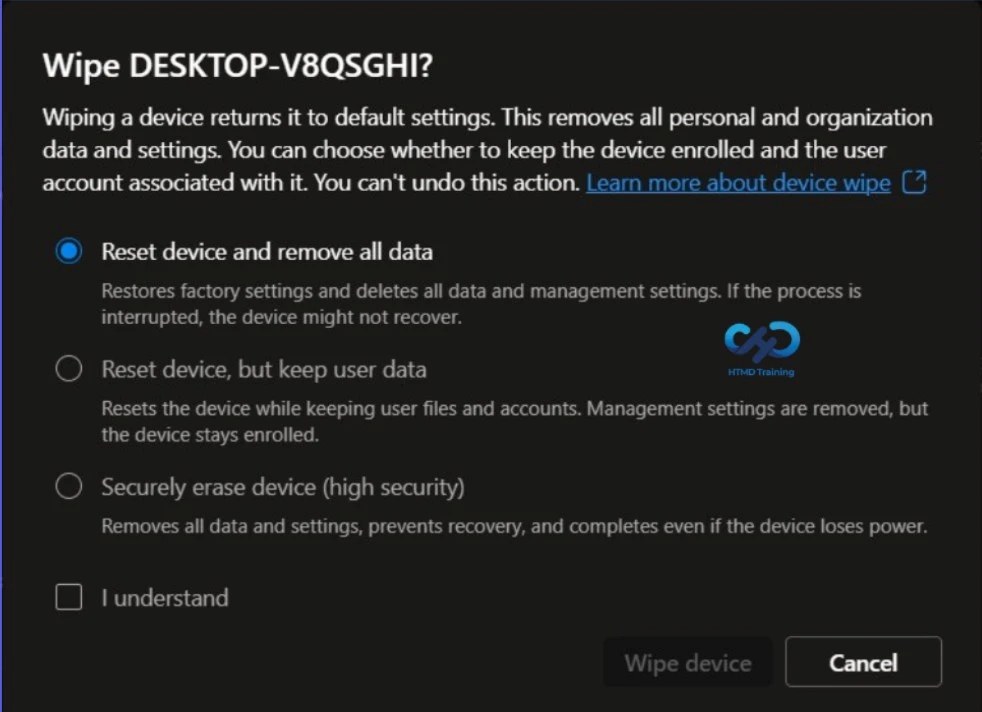
The updated confirmation dialog replaces the earlier checkbox-style presentation with three radio-button choices. The wording focuses on what the administrator wants to achieve, which helps reduce ambiguity at the point of execution. The available choices shown in the current dialog are:
- Reset device and remove all data
- Reset device, but keep user data
- Securely erase device (high security)
The new presentation changes how the decision is communicated, not the importance of the decision. Each choice maps to a Windows RemoteWipe CSP action, and the resulting behavior differs significantly.
Understand the Three Wipe Choices
The following table outlines the three Intune device wipe options, detailing their impact when selected, the corresponding Configuration Service Provider (CSP), and the recommended best-fit scenarios.
| Choice | What happens | CSP action | Best-fit scenario |
|---|---|---|---|
| Reset and remove all data | Returns Windows to factory settings and deletes user data, settings, and MDM policies. An interrupted process attempts rollback. | doWipe |
Retirement, repurposing, troubleshooting, or a clean rebuild where standard reset behavior is appropriate. |
| Reset, but keep user data | Preserves user files, user accounts, and important settings. MDM settings are removed, but the device remains enrolled in Intune. | doWipePersistUserData |
Resetting the managed state while minimizing disruption to the existing user profile. |
| Securely erase (high security) | Deletes data, settings, and MDM policies, overwrites free space, and continues even if power is lost. | doWipeProtected |
Corporate-owned devices requiring stronger protection against data recovery, with recovery procedures already prepared. |
Note: Microsoft warns that the protected wipe can interfere with boot recovery or firmware protections on some devices. The device might become unrecoverable. Use this choice only for corporate-owned hardware when complete data destruction is required and a recovery or replacement plan exists.
Prerequisites and Governance Checks
Before initiating the remote action, verify both technical permission and operational authorization:
- Use the Help Desk Operator role, the School Administrator role, or a custom role that includes Remote tasks/Wipe plus permissions to view and access the managed device.
- Confirm that the target is an Intune-managed Windows device and verify the device name, serial number, primary user, and ownership record.
- Check whether an Intune access policy requires Multiple Administrative Approval. If it does, the request needs approval from another administrator before execution.
- Confirm that the request fits the organization’s device disposal, incident response, or reassignment process.
- Be aware that Microsoft documents a tenant-wide limit of 500 Wipe submissions per day, cumulative across single-device actions, bulk actions, and Microsoft Graph requests.
Step 1 - Open the Managed Device
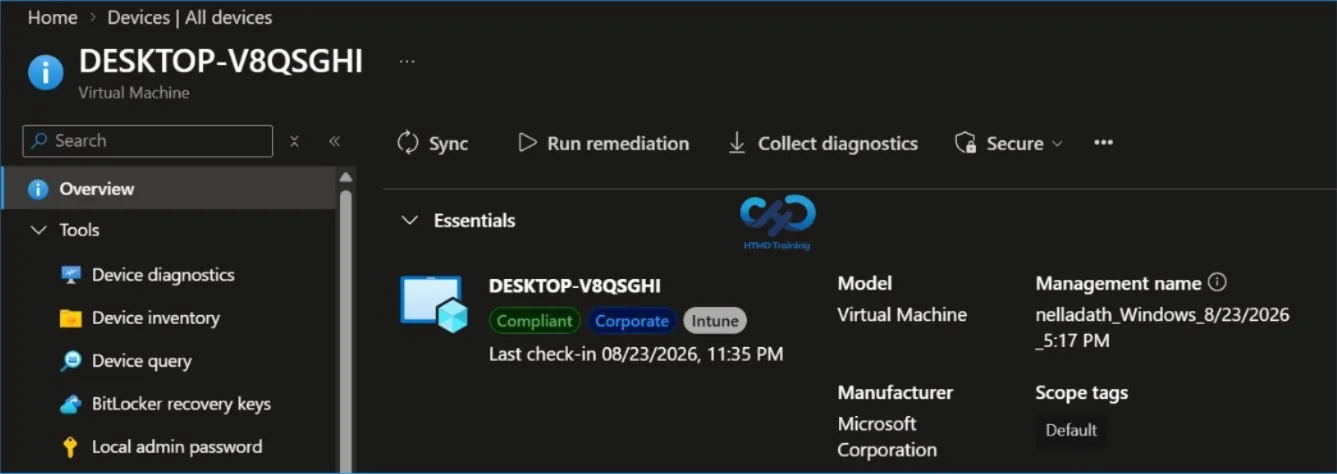
Sign in to the Microsoft Intune admin center. Select Devices > All devices, and then open the Windows device that must be reset. Review the device identity carefully before continuing.
Step 2 - Start the Wipe Action
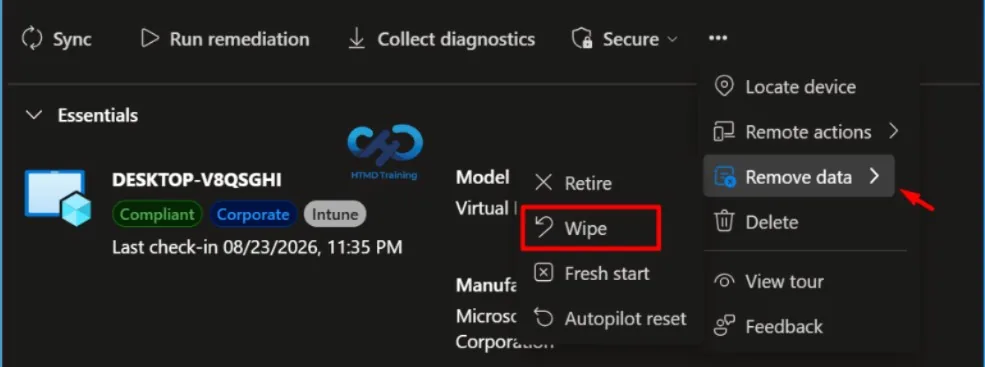
On the device overview page, locate the row of remove data icons and select Wipe. If the action is not immediately visible, check the overflow menu, depending on the browser width and portal layout.
Step 3 - Select the Intended Outcome and Acknowledge the Action
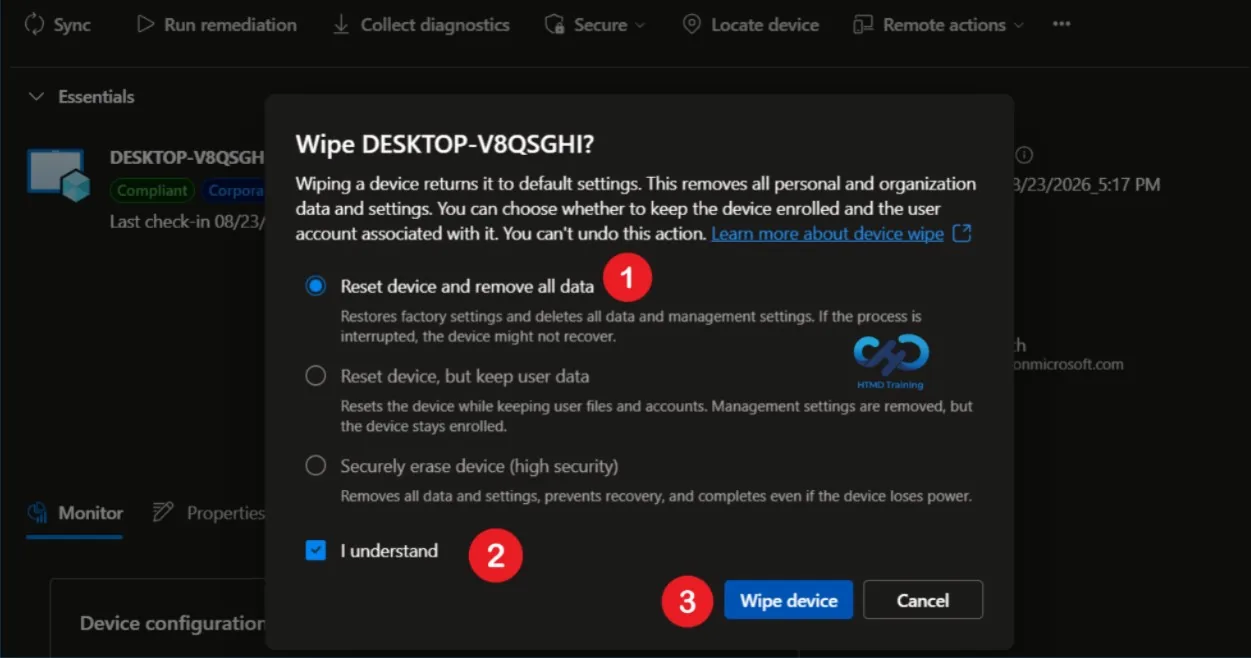
Choose one of the three radio-button options. Do not treat the choices as equivalent:
- Choose Reset device and remove all data for a regular factory reset that removes the device content and management configuration.
- Choose Reset device, but keep user data only when preserving local user files and accounts is part of the plan and continued enrollment is desired.
- Choose Securely erase device (high security) only when stronger anti-recovery behavior is justified and the hardware is corporate-owned.
Select I understand, recheck the displayed device name and selected outcome, and then select Wipe device. The acknowledgement is an important final pause because the operation cannot be undone after it is issued.
Step 4 - Verify the Administrative Status
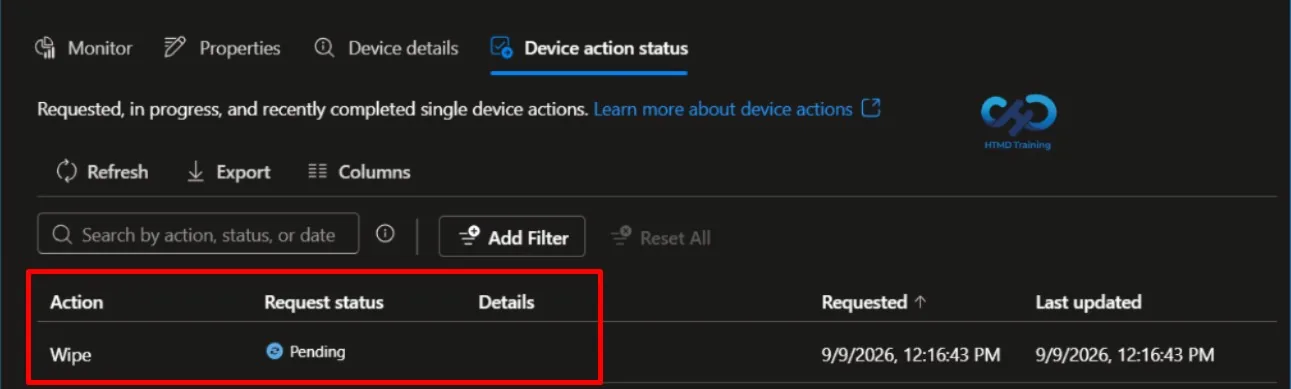
In the Intune admin center, select Devices > Overview > Device action status to review the submitted action and its reported status. If Multiple Administrative Approval is configured, also confirm that the request has received the required second approval. Remember that status reporting and the physical device outcome should both be considered during validation.
What to Do After the Wipe
A wipe does not automatically represent every cleanup task in the device lifecycle. If the device is leaving the organization permanently, review whether its Windows Autopilot registration and Microsoft Entra device record should also be removed. Perform those follow-up actions only when they match the intended lifecycle state, because removing those records affects future provisioning and tenant identity inventory.
Reference Links
Microsoft Learn: Wipe devices with Microsoft Intune
Microsoft Learn: Windows RemoteWipe CSP
Microsoft Graph: managedDevice wipe action
Microsoft Learn: Multiple Administrative Approval
Conclusion
The redesigned Windows wipe dialog makes a destructive device action easier to interpret, but the administrator still owns the final risk decision. Match the choice to the business outcome, apply an approval process for sensitive cases, and verify both the Intune action status and the device’s final state.
HTMD Consultancy
Get in touch with us to streamline your IT and security solutions. Let us help you fix complex issues and provide streamlined solutions for complex migration projects. Follow us on LinkedIn.